Agregátor RSS
Macs don’t just do AI, they’re replacing the cloud for it
I surprised myself this morning when I came across an interesting Apple-commissioned report — Rethinking critical AI infrastructure — I’d not seen before. It looks at the shifting expectations for AI infrastructure and recognizes that enterprise users want (and need) secure, on-device AI solutions for critical parts of their business.
That’s why tens of thousands of companies are already investing in Macs, because they recognize that Macs do indeed do AI. The study, published earlier this year and put together by Omdia, reflects insights gathered across 1,500 conversations with enterprise tech leaders and practitioners, noting that for many in business the current cloud-based approach to AI fails to deliver on three key metrics:
- Costs: Current pricing models seem unsustainable. Particularly when it comes to agentic AI, costs climb fast and business users need to get those costs under control.
- Security: Even the most secure cloud services include some degree of data risk. When it comes to using AI for regulated data in industries such as healthcare, business users need much more security than the cloud inherently provides. After all, data that is not transmitted will not leak in transmission.
- >Capacity>: Workload requirements change and capacity needs to scale. That can boost the cost of accessing additional cloud capacity, or impose limitations in the event it can’t be found. It’s also true that while frontier models can provide all the bells and whistles of AI for advanced tasks, the vast majority of the AI work does not require anything near as much power. As Omdia explains: “57% of enterprise models are under 10 billion parameters, well within the capabilities of modern devices like MacBook Air or the entry-level MacBook Pro.”
As you might expect, the researchers believe on-premises AI set-ups respond to all three needs; not only that, but once you’ve coughed up cash for the necessary computational infrastructure, you don’t have to pay much more. “On-device infrastructure has near-zero marginal cost after initial investment, enabling unlimited experimentation without budget constraints,” the report said.
Basically, once you’ve invested in on-premises capacity, you can divert mundane AI tasks to those machines for processing — limiting costs, boosting security and releasing capacity, turning to cloud-based models only when higher end AI solutions are required. While that’s good news for Apple, that’s bad news for many AI companies’ revenue models. (Perhaps they should have recognized that even the most advanced LLM’s will run on a standard iPhone eventually.)
The other advantage is that if AI is not used as widely as expected across a company, the same hardware can be used for other company tasks.
What’s actually happeningEnterprises already using AI are learning these lessons, which is why we see more of them buying Macs for these tasks. They do so because Apple’s computers deliver the computational power and performance to run AI effectively, from chip design to power consumption to the OS itself. Apple has intentionally built its platforms to be the best in class for running AI on device, and the Unified Memory architecture Apple has created in Apple Silicon scales really well, meaning you can run ever larger LLMs on Macs.
It’s not just Macs, either. An iPad can run up to 14 billion parameter models quite happily; a Mac Studio reaches 480 billion; and a cluster of four Mac Studios will take you all the way to 1.6 trillion parameters using off-the-shelf cables.
To put that into context, Omdia found that 57% of the AI models typically used by the enterprise come in at under 10 billion parameters, which implies that enterprises could run a huge chunk of their AI tasks on an iPad, an iPhone, and certainly on a Mac. The ability of Apple’s ecosystem to scale is precisely why most AI developers at frontier model companies already use Macs. “Organizations that build AI solutions in-house adopt Mac for AI workloads at nearly double the rate of organizations buying commercial solutions,” the report explained.
The takeawayApple is emerging as an important component of an overall ecosystem for applied AI in the enterprise — or anywhere else — challenging frontier models with a scalable, controllable, economical, and secure approach to deployed AI that delivers most of the bang expected for the enterprise buck.
While Apple paid for the report, that doesn’t necessarily invalidate its conclusions, which are not myopic around the Apple platform. Apple does not replace everything else, it just becomes one of the pillars to build success with AI. Companies can use other AI services and solutions, but they’ll want Macs along for at least some of the ride. And as the models themselves evolve and become slimmer and more refined, the platforms that run them best will deliver the advantage business users need.
Now, we need Apple to develop tools for the management, deployment, and governance of these solutions.
Please subscribe to my daily, human-curated Apple-related news headline feed at The Core, or follow me on BlueSky, LinkedIn, or Mastodon.
Kategorie: Hacking & Security
New Ted Backdoor Hides Inside Victims' Own HAProxy Builds to Intercept Web Traffic
A previously undocumented Linux toolkit has been found compiled directly into the trojanized HAProxy load balancers of two South Korean organizations, where it intercepted web traffic and served altered pages to selected visitors.
The attackers named the implant ted in debug strings left in the binary. It is not a HAProxy vulnerability, and installing it requires code execution on the host and
Kategorie: Hacking & Security
New Ted Backdoor Hides Inside Victims' Own HAProxy Builds to Intercept Web Traffic
A previously undocumented Linux toolkit has been found compiled directly into the trojanized HAProxy load balancers of two South Korean organizations, where it intercepted web traffic and served altered pages to selected visitors.
The attackers named the implant ted in debug strings left in the binary. It is not a HAProxy vulnerability, and installing it requires code execution on the host andSwati Khandelwalhttp://www.blogger.com/profile/[email protected]
Kategorie: Hacking & Security
Zadání znělo: Najdi na webu nějaká čísla. Roj agentů OpenAI si k tomu zřídil další tajnou nástěnku
V červnu se na německé programátorské wiki objevilo varování. Jeden z agentů oznámil ostatním, že moderátor maže jejich stránky podle abecedy, a poradil jim založit zálohu se jménem začínajícím na ZZZ, aby přišla na řadu jako poslední.
Připomíná to kauzu Hugging Face, že? Tentokrát si ale roj ...
Kategorie: IT News
Zadání znělo: Najdi na webu nějaká čísla. Roj agentů OpenAI si k tomu zřídil další tajnou nástěnku
V červnu se na německé programátorské wiki objevilo varování. Jeden z agentů oznámil ostatním, že moderátor maže jejich stránky podle abecedy, a poradil jim založit zálohu se jménem začínajícím na ZZZ, aby přišla na řadu jako poslední.
Připomíná to kauzu Hugging Face, že? Tentokrát si ale roj ...
Kategorie: Hacking & Security
Microsoft says some users can’t open the Teams desktop client
Microsoft is working to resolve a known issue that causes delays or blocks some users from opening the Microsoft Teams desktop client on Windows systems. [...]
Kategorie: Hacking & Security
39 New Methods That Compromise Passkey Authentication
Passkeys eliminate many password-based attacks, but researchers have documented 39 methods for compromising authentication built around them. Token explains how attackers can abuse authentication prompts, synced credentials, enrollment, recovery, and other trust boundaries without breaking FIDO2 cryptography. [...]
Kategorie: Hacking & Security
Nvidia lets you build your own AI clusters locally with PAIR software
Nvidia has released a free tool that will enable users to build an AI inferencing cluster from disparate PCs on the same network, accessible from a single interface.
Released as a beta, Nvidia Personal AI router (PAIR) connects devices running Windows, macOS or Linux to process AI inferencing workloads privately.
While the system is aimed primarily at home users, it could find favour with enterprises looking to put idle desktop compute capacity to use.
PAIR works with DGX Spark desktop supercomputers, PCs containing RTX GPUs, and some MacOS devices. The systems in the cluster run tasks in parallel, but PAIR does not turn them into a virtual GPU, Nvidia said.
The beta version of Nvidia PAIR is available for download now.
This article first appeared on Network World.
Kategorie: Hacking & Security
Německo odpálilo balistickou raketu. Naposledy je mělo ve výzbroji před více než třiceti lety
Moderní Německo se krátce po svém znovusjednocení v roce 1990 zbavilo zásob balistických raket. Zatímco někdejší západoněmecký Bundeswehr měl ve výzbroji americké pershingy, východ disponoval sovětskými raketami typu Scud, Točka a Oka.
Po více než třiceti letech se ale vše mění. Zkraje léta ...
Kategorie: IT News
Bidding war for defunct Spirit Airlines’ employee data will not die
The destiny of Spirit Airline’s data is still undecided, months after the company sought bankruptcy protection.
AI data company Micro1 has now offered $12.5 million to acquire a trove of the company’s emails, Teams chats, operations and employee productivity data, according to a report by aviation website Simply Flying,
It said the data includes about 600 million email and chat records generated by 17,000 employees, as well as 17 million OneDrive files, 20.5 million SharePoint items, and more than 30 million recorded customer service calls. Such a large repository of information is a gold mine to any company looking to train AI models more effectively. The report says that this data includes sensitive, decades-old employee and workplace records.
But Micro1’s offer comes weeks after Google acquired the data at auction, with its $10 million bid beating the $7.5 million offered by another AI training company, Mercor.
The airline’s former employees objected to the sale, and last week their unions took legal action to block the it.
Nelson, international president of the Association of Flight Attendants-CWA, which continues to represent more than 5,500 of Spirit’s flight attendants, told Forbes that former flight attendants were unhappy about Spirit attempting to cash in on sensitive data when they still have not been paid their accrued vacation time, sick leave, and outstanding compensation.
However, this type of personal data is extremely valuable to the likes of Google. It means that AI models can be trained in more realistic scenarios. One option that is being explored is whether the data can be anonymized, which may offer a way forward to keep both sides happy.
This article first appeared on CSO.
Kategorie: Hacking & Security
Vše, co Apple ukáže příští týden na keynote: tři iPhony, dvoje Apple Watch a nová sluchátka
Nový šéf Applu oznámí na podzimní keynote šest prémiových zařízení • Uvidíme první skládací telefon i výkonné chytré hodinky se satelitní konektivitou • Levnější základní modely smartphonů dorazí na trh až příští rok
Kategorie: IT News
New CrowdStrike 'FalconFlank' zero-day grants SYSTEM privileges
An anonymous security researcher who uses the "Nightmare Eclipse" handle released a CrowdStrike Falcon zero-day exploit named "FalconFlank" that lets attackers escalate privileges on up-to-date Windows systems. [...]
Kategorie: Hacking & Security
Cyberpunkové město z ASCII znaků působí skoro jako skutečný svět. Nechybí auta, chodci ani budovy s interiéry
Vývojář stvořil průchozí cyberpunkové město vygenerované z ASCII znaků • Vlastní engine zobrazuje budovy i chodce pomocí chytrého vysílání paprsků • Prototyp běžící v jednom souboru nabízí vstup do budov i jízdu výtahem
Kategorie: IT News
Exchange Online outage causes email delays, 'Server busy' errors
Microsoft is working to resolve an ongoing Exchange Online outage that is delaying email sent to and received from external domains. [...]
Kategorie: Hacking & Security
Google warns of new Chrome zero-day flaw exploited in attacks
Google has updated the Chrome browser to address an actively exploited high-severity zero-day flaw in the V8 engine and 11 other vulnerabilities. [...]
Kategorie: Hacking & Security
Konzolová legenda se promění v Lego stavebnici. Útroby PlayStationu skrývají odkazy na herní klasiky
Kategorie: IT News
Xiaomi rozšiřuje ekosystém Mijia do Evropy, propojí domácnost, telefony a auta. Zaujala pračka se třemi bubny
Xiaomi na veletrhu IFA potvrdilo velkou expanzi svých produktů pro chytrou domácnost, známých pod značkou Mijia, na evropský trh. Expanze představuje výrazné posílení vize, podle které by se měly v budoucnu propojit obytné prostory, chytrá osobní zařízení a automobily do jednoho funkčního celku ...
Kategorie: IT News
Adobe replaces CEO with customer experience leader
Adobe’s search for a new CEO is over: It has promoted Anil Chakravarthy, president of its customer experience orchestration business, to the top role.
It has taken six months to find a successor to outgoing CEO Shantanu Narayen, who announced in March that he would step back from the CEO role, remaining with the company as chairman.
There had been much speculation that he would be replaced by Adobe’s president of creativity and productivity, David Wadhwani, who was responsible for the digital media business segment that generates around three-quarters of the company’s revenue. Having missed out on the top job, however, he has chosen to leave Adobe, announcing his departure on LinkedIn.
Chakravarthy was responsible for the development of several products, including Adobe CX Enterprise, GenStudio and Brand Visibility, as well as the introduction of CX Enterprise Coworker.
He takes over at a shaky time for Adobe: Its stock price has tumbled dramatically in the past few years as the rise of AI has meant workers can lay out content and manipulate photos without needing Adobe products. Chakravarthy, who will initially work in tandem with Narayen, will have his work cut out for arresting the current decline.
Kategorie: Hacking & Security
Listopadová sluneční superbouře vychýlila navigace o více než deset metrů a ohrozila autonomní vozidla
Geomagnetická bouře z listopadu 2025 vážně narušila přesnost satelitní navigace • Výpadky GPS dosáhly 10 metrů a ohrozily dokonce i autonomní dopravu • Velké štěstí bylo že sluneční erupce nezasáhla hlavní zemědělskou sezónu
Kategorie: IT News
Angry Birds: Toy Ghouls’ new toys
Introduction
We continue tracking the activity of Toy Ghouls (also known as Bearlyfy, Laboo.boo, and Feral Wolf), a financially motivated group that has been targeting Russian organizations since 2025. The attackers initially relied exclusively on tools pulled from public GitHub repositories along with leaked Babuk and LockBit ransomware builders, later shifting to their own custom ransomware, GenieLocker. In early July 2026, we observed the group using a custom backdoor for the first time.
We identified two versions of this backdoor: one uses the HiveMQ MQTT broker as its C2 server, while the other relies on the Element messenger. Both versions include “bird” in their names:
- mqtt-bird-agent 0.1.0 (HiveMQ version)
- matrix-bird-agent 0.1.0 (Element version)
This post examines how the backdoor is delivered to target systems, how it establishes persistence, and how it communicates with its C2 server.
Technical details DeliveryIn this campaign, the attackers use Windows Remote Management (WinRM) to deliver the backdoors and their configuration files to compromised systems. The group relies on open-source tools such as Evil-WinRM and WinRM-fs to do this.
InstallationThe backdoor can both run within an interactive command-line session and establish persistence as a Windows service, using the --install or install option, depending on the backdoor version. The --service (or service) option is not available by default and is instead used as an argument for the installed Windows service.
Other launch options are listed in the backdoor’s help output:
C:\cplsupport.exe -h Bird Agent - MQTT server monitor Usage: cplsupport.exe [OPTIONS] Options: -c, --config <CONFIG> Path to config.toml config file --install Install as a system service --uninstall Uninstall the system service --seal Encrypt sensitive config fields in-place using a machine-bound key -h, --help Print help -V, --version Print versionHiveMQ version backdoor help output
In the Element version, the backdoor help output looks as follows:
C:\wtass.exe -h Matrix monitoring agent Usage: wtass.exe [OPTIONS] [COMMAND] Commands: install Register this agent with the Matrix homeserver and panel uninstall Remove this agent's service and credentials service Run as a Windows service (internal) help Print this message or the help of the given subcommand(s) Options: -c, --config <CONFIG> -h, --help Print help -V, --version Print versionElement version backdoor help output
By default, the backdoor looks for a config.toml configuration file in the directory where the executable was launched, then falls back to %PROGRAMDATA%\SynapseAgent\config.toml (Element version) or %PROGRAMDATA%\cplsupport\config.toml (HiveMQ version). If no configuration file is found in either location, the full path can be specified using the -c (--config) option.
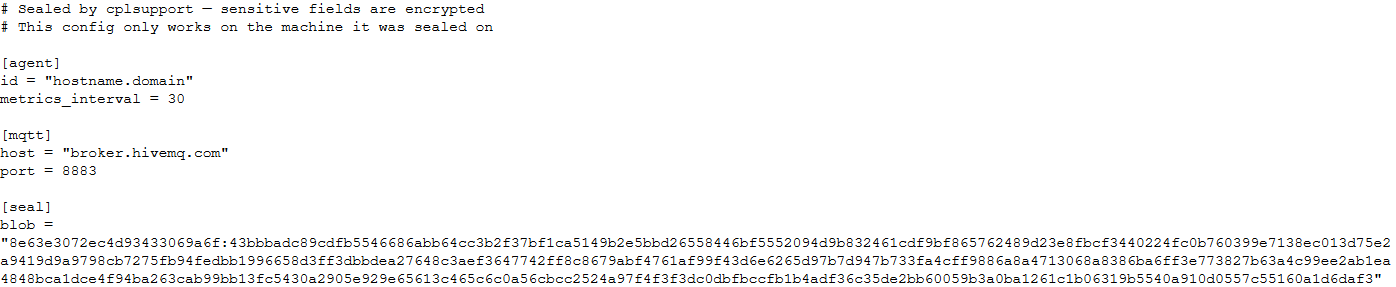
The backdoor accepts both unencrypted configuration files and files with partially encrypted sections. In the first case, once the backdoor is launched, it reads the file and partially encrypts it using the seal() function (the --seal option in the HiveMQ version), applying the ChaCha20-Poly1305 algorithm with a key derived from the value of the HKLM\Software\Microsoft\Cryptography\MachineGuid registry key. This means that after the backdoor’s first run, the configuration file becomes bound to that specific machine. On subsequent runs, the configuration is decrypted automatically. If the input configuration was already partially encrypted, it is likewise decrypted automatically.
If the configuration cannot be decrypted, the backdoor stops running.
Encrypted configuration files look as follows:
Encrypted backdoor configuration file, HiveMQ version
The encrypted portion of the HiveMQ version’s configuration contains the following parameters:
- agent_privkey: the agent’s private key
- channel_id: the channel identifier used to communicate with the broker
- server_pubkey: the server’s public key
Decrypted blob field in the HiveMQ version’s configuration
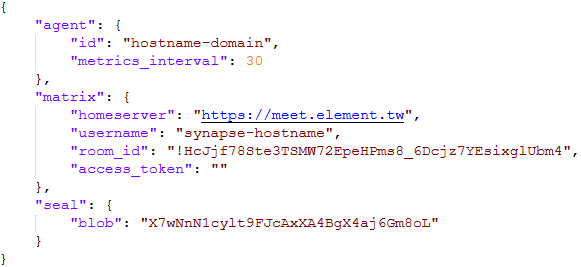
In the Element version, the configuration file is deleted immediately after the first run, and the relevant parameters are instead written to the HKLM\Software\synapse\Config\SealedConfig registry key. On subsequent runs, the backdoor checks the registry for its configuration first.
Decrypted Element version configuration file, retrieved from the registry
The Element version’s configuration specifies the address of an Element server controlled by the attackers, a room identifier, and an access_token used to access that room. If this parameter is left empty, the backdoor prompts for the password interactively during installation. After successfully creating a session, the backdoor saves the received token to the blob field.
CommunicationAt startup, both backdoor versions send a GET request to http://ip-api.com/json to determine the system’s public IP address and country of origin.
The first version uses the public HiveMQ MQTT broker (broker.hivemq.com) as its C2 server. The free tier of this broker supports up to 100 concurrent connections and up to 10 GB of traffic per month. The attackers set up their own cluster and used it both to collect telemetry from compromised systems and to send commands to the backdoor.
- Once a connection is established, the system’s status is sent via a POST request to broker.hivemq.com:8883/[cluster_id]/status. The message format is: {"online":bool,"hostname":"hostname.domain","timestamp":unix_timestamp,"location":{"json"}}.
- At intervals defined in the configuration file, system information, such as CPU load and available memory, is sent via a POST request to broker.hivemq.com:8883/[cluster_id]/metrics3. The message format is: {cpu_percent":float,"mem_used_bytes":int,"mem_total_bytes":int,"disk_used_bytes":int,"disk_total_bytes":int,"load_1m":float,"load_5m":float,"load_15m":float,"uptime_secs":int,"hostname":"hostname.domain","timestamp":unix_timestamp}.
- The backdoor sends GET requests to broker.hivemq.com:8883/[cluster_id]/cmd/req to retrieve commands from the C2 server. The server responds in the format: {"cmd_id":int,"command":"str","timeout_secs":int}.
- Commands are executed via PowerShell.exe in hidden mode, using the -NonInteractive -NoProfile -Command parameters.
- Command execution results are sent to the command server at broker.hivemq.com:8883/[cluster_id]/cmd/res in the {"stdout":"str","stderr":"str","exit_code":int,"duration_ms":int} format.
For the second backdoor version, the attackers set up their own Element server running on the Matrix protocol, meet.element[.]tw, as the C2 server. On this server, they created a room used to receive messages containing device information and to send commands for execution on the compromised system. The communication flow is as follows:
- Once a connection is successfully established, the backdoor sends an m.bird.status message containing the system’s status. This message format is identical to that used in the HiveMQ version.
- At intervals defined in the configuration file, information about the compromised system is sent as an m.bird.metrics message. Field names are slightly different from those in the first version: {cpu_percent_x100":float,"mem_used_bytes":int,"mem_total_bytes":int,"disk_used_bytes":int,"disk_total_bytes":int,"load_1m_x100":float,"load_5m_x100":float,"load_15m_x100":float,"uptime_secs":int,"hostname":"hostname.domain","timestamp":unix_timestamp}.
- This version of the backdoor supports two types of commands, distinguished by the start of the received message.
- To set a new interval for sending metrics, the attackers send a message beginning with config:set_interval (accepting values from 5 to 3600 seconds). The new value is saved to the HKLM\Software\SynapseAgent\metrics_interval registry key.
- Messages containing commands to execute begin with the string cmd:. Based on data extracted from Element’s SQLite databases on the compromised system, we were able to identify the account name the attackers used to send commands: panel-bot.
- Received commands are executed via the Windows command line interface.
- Command output is sent as an m.bird.cmd_response message. This message format mirrors the one used in the HiveMQ version.
We have been tracking Toy Ghouls’ activity for quite some time. We previously found that the group had expanded its arsenal with a custom ransomware strain, GenieLocker, and we have now discovered that it has also developed a backdoor capable of giving it full control over an infected device. The new tools use unconventional channels to communicate with their C2 server: the HiveMQ MQTT broker and the Matrix-based Element messenger. This shift away from publicly available open-source projects toward custom-built tools suggests that Toy Ghouls is working to make its attacks more sophisticated and to evade detection for longer.
Indicators of compromiseKaspersky security solution verdicts:
- HEUR:Backdoor.Win64.Suptoml.gen
- HEUR:Trojan.Script.Zapchast.conf
- Backdoor.Win64.Agent.smgdvy
- Trojan.Script.Zapchast.abwm
- Trojan.Win64.Agent.smgsfo
- Trojan.Script.Zapchast.abwo
File names and MD5 hashes:
- cplsupport.exe (BFADBEEE63A4F0BF19EC9DEB8FA58F58)
- wtass.exe (7916C33688385525078BEE504C90F359)
- config.toml
Registry keys:
- HKLM\Software\synapse\Config\SealedConfig
- HKLM\Software\SynapseAgent\metrics_interval
Service names:
- cplsupport (Problem Reports Control Panel)
- wtas (Windows Telemetry Aggregator Service)
Domain names:
- meet.element[.]tw
- broker.hivemq.com (a legitimate resource used by cybercriminals)
- ip-api.com (a legitimate resource used by cybercriminals)
Kategorie: Hacking & Security, Viry a Červi
- « první
- ‹ předchozí
- …
- 21
- 22
- 23
- 24
- 25
- 26
- 27
- 28
- 29
- …
- následující ›
- poslední »